Code
All code for the mechanical mirror can be found in this GitHub repository
Sprint 1:
In sprint one, there were two systems that we needed to code. This first was image processing, which would take an image of the background and an image of the subject and turn it into data we could display.
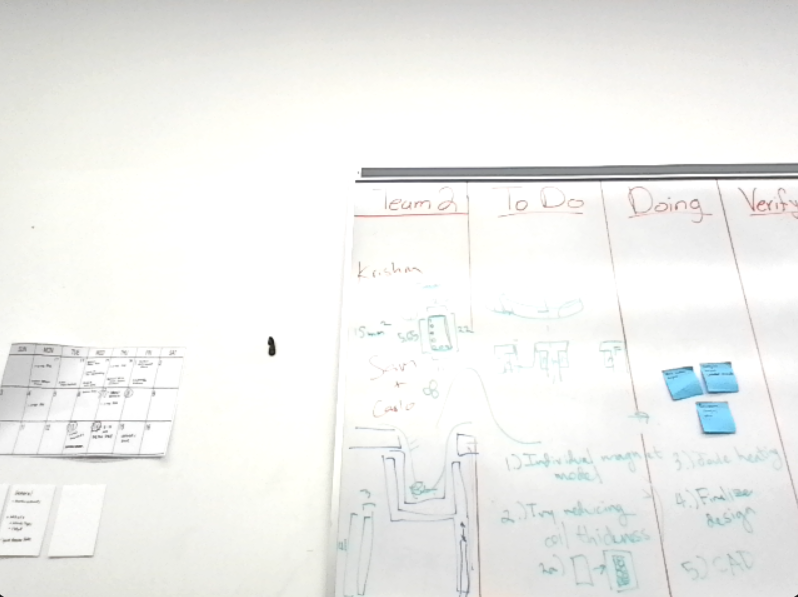
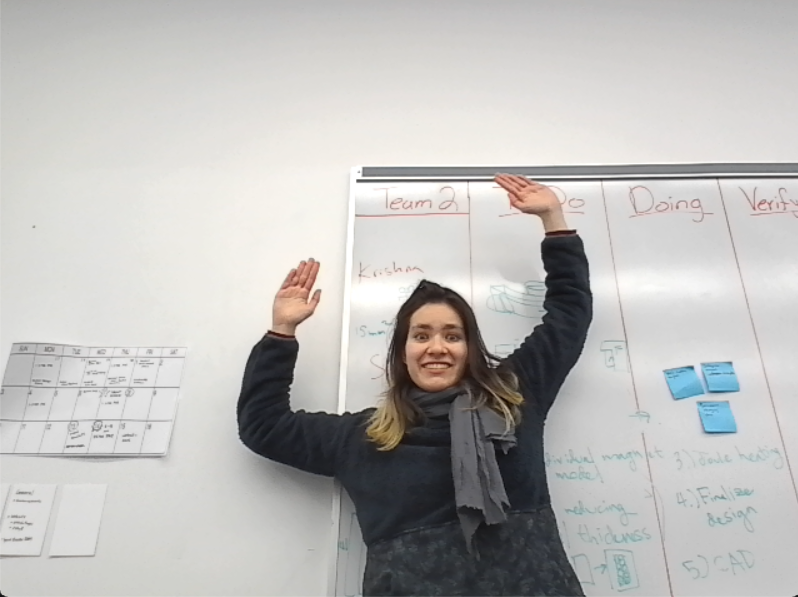
To find the subject we first crop the images to the same dimensions as the final resulting image. To do this we calculate the aspect ratio that we wish to achieve (the target aspect ratio), and compare it to the aspect ratio of the original image (original aspect ratio). If the original aspect ratio is larger than the target aspect ratio, then it will keep the height the same, but have a new, reduced width of the height multiplied by the target aspect ratio pixels. If the target aspect ratio is larger than the original, then it will keep the same width, but have a new, reduced height of width divided by the target aspect ratio pixels. It then crops the image only keeping the new calculated number of pixels of the height and width, making sure that the crop is centered. Cropping prevents excess distortion of the proportions of the image we display.
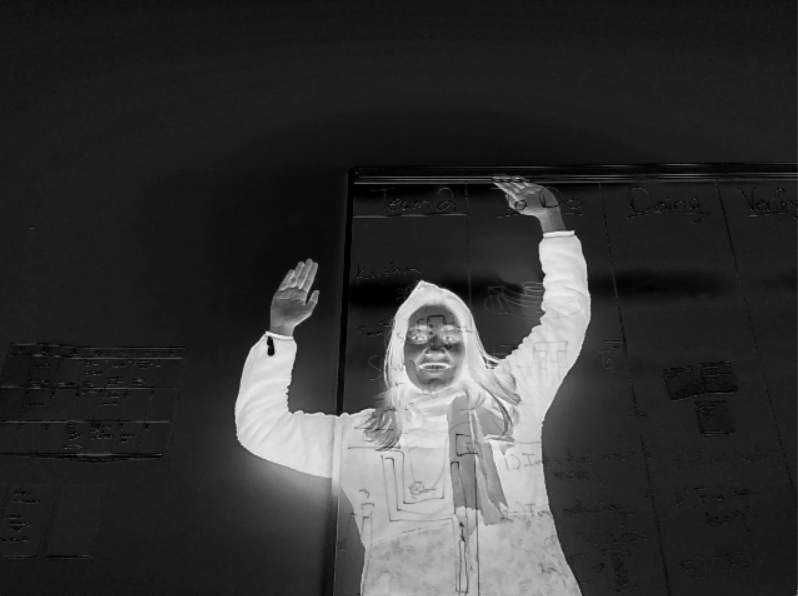
After cropping the image, we average the absolute difference of the two photos in RBG, and the absolute difference of the value, or brightness, of the two pictures in HSV. The process was arbitrarily chosen based on what seemed to work well with a limited set of photos. Then we downsample the image to the pixel size of the mechanical mirror using cv2’s resize function. This allows us to begin working in the same pixel space as our mechanical mirror.
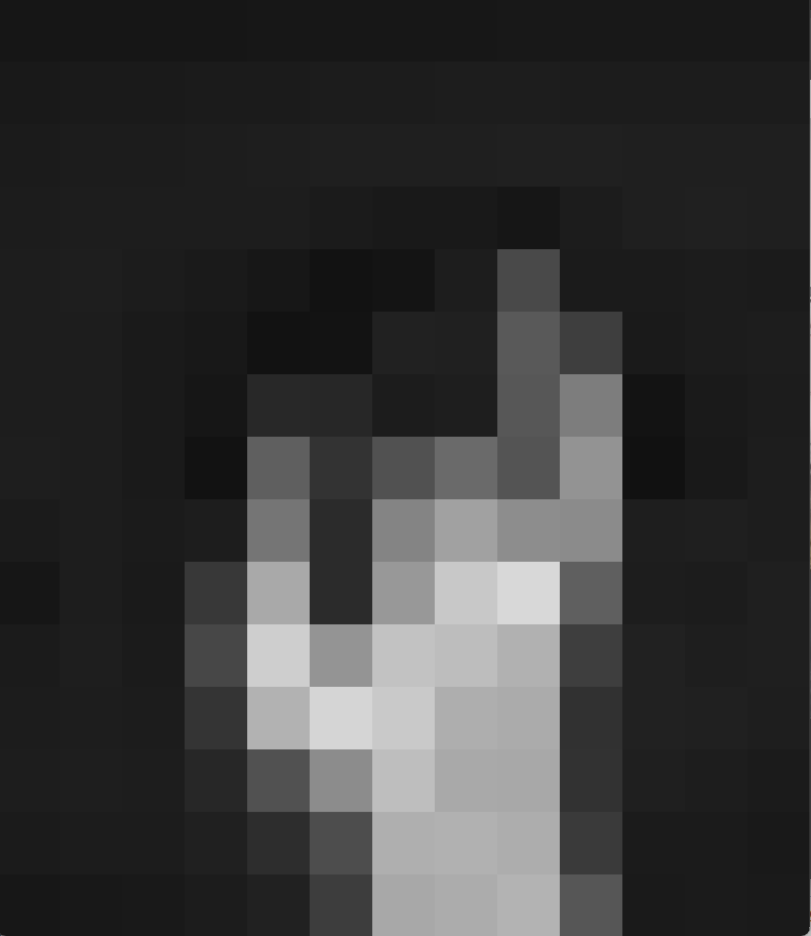
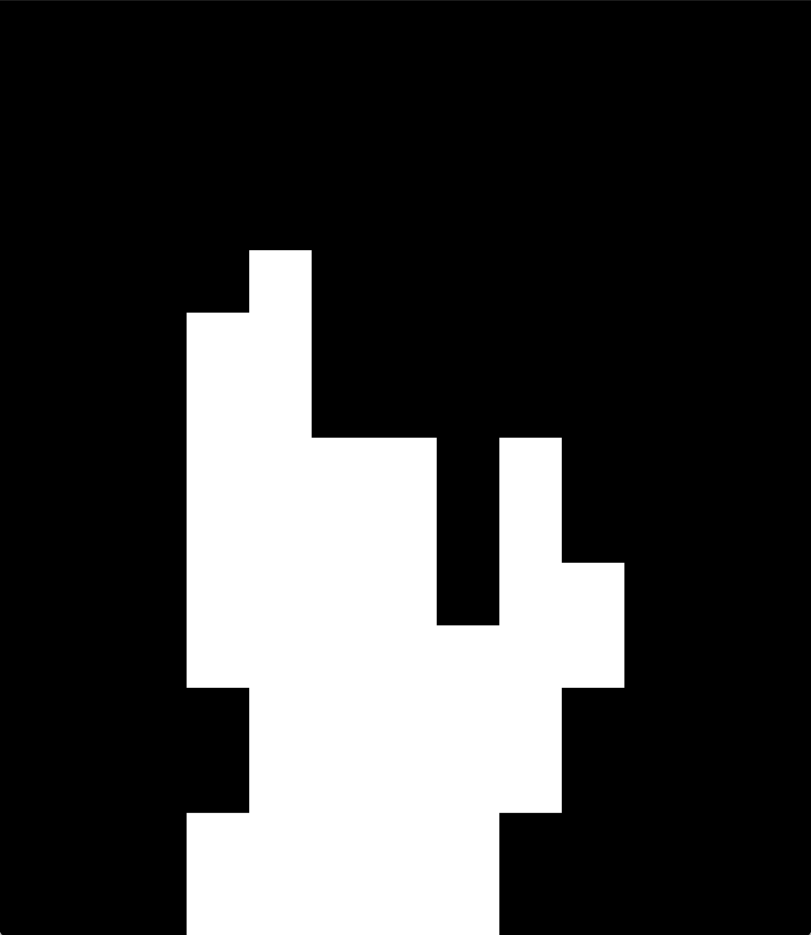
Then, as a form of thresholding, we run a k-means clustering algorithm with three clusters. This is a much more dynamic and adaptable form of thresholding compared to simply hard coding a strict value. We designate the cluster assigned to the value on the upper left corner as the cluster with all the unchanged parts, as that pixel is one of the least likely to ever be changed. So we assign all the pixels in that cluster to be black, while the pixels in the other two clusters will be white. The white pixels will contain the outline of the person, as that should be the only major change between the two photos.
Then we prepare the information in a way so as to be more easily read and integrated with the other code, including flipping the image as to display the mirror image.
The second system was control, which would take the data and command the actuators to display it on the mirror. This code had two parts, the software that would run on a computer and handle the high level commands and logic, and the firmware that would run on the microcontroller and execute those commands by controlling the actuators via the GPIO pins. The first step for writing the firmware was to run tests for controlling the servo motors and stepper motor. Once we were able to control them consistently and precisely, we took that code and wrote functions to make each actuator go to a specified position, which would equate to high level commands the software could execute.
To let the software communicate with the firmware, we used a serial connection. The microcontroller would wait for a serial command, then once it received one parse the first letter, which would tell it what function to execute. The rest of the command would be parsed as the arguments for the function. After the function was executed, the microcontroller would send back an empty line if the function succeeded or an error message if there was an issue. The software for sprint one was just a simple python program to connect to the serial port and write commands by hand. This allowed us to test everything and show the 2x2 display working, but would need to be upgraded to generate commands automatically for larger displays.
Sprint 2:
For sprint two, we started by connecting more actuators. This ended up being a trivial process because the code that we wrote in sprint one could be used for any arbitrarily sized display. This showed that our code was scalable and could be used to control any size of display with little to no modification, proving that it would work for our final display no matter the size.
We also wanted to integrate the image processing code from sprint one, which would mean automatically generating commands. We wrote a function that would take the data generated by the image processing code, a simple 2 dimensional array, and iterate over the columns, turning each pixel that needed to be flipped by sending commands to the microcontroller via the serial connection. We also implemented state saving, meaning that the display would know which pixels were flipped even if the code was rerun or the computer was shut off.
We also wanted to start the process of integrating the Raspberry Pi we planned to use as our final computer. We didn’t have a monitor, so we set up a VNC connection on the arduino. Unfortunately, the connection was very temperamental, and would disconnect every couple of minutes, so we also wanted to have the code automatically update and run when the Raspberry Pi turned on. To do this we wrote a systemd service to pull our code from github and run a main python script. This would theoretically allow us to update and test the code on the Raspberry Pi by simply plugging it into a power source, and we could run whatever we wanted by starting it from the main python script. While this was briefly useful in sprint two, we ended up changing this in our next sprint for several reasons.
The last thing we did in sprint two was test the PiCam. We wrote a small test script to make sure it would work as intended and tested the PiCam while using the VNC connection. We were able to get images and left PiCam integration for sprint three.
Sprint 3:
For sprint three, we started by reorganizing the code into modules. Going into this sprint, the code was mostly in a single file. We decided to break it up into several modules to keep our code more organized.
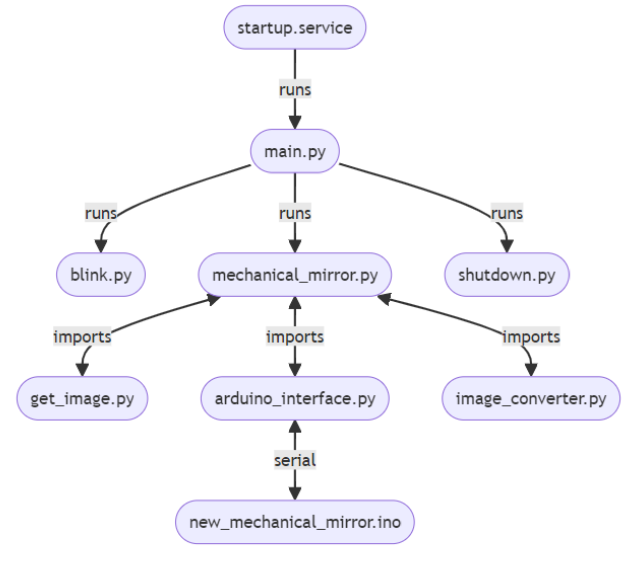
Breaking our code into modules also allowed us to more easily implement multi-platform code. When integrating our code with the Raspberry Pi, it quickly became clear that we needed to execute different code when testing with a laptop or using the Raspberry Pi, especially when getting images from the camera. To solve this issue, we wrote code that would determine the platform that the code was running on and import different libraries based on the operating system. Certain functions would also run different code based on the operating system. For example, the mechanical mirror code would use ‘COM4’ for the serial port on Windows and ‘/dev/ttyACM0’ on Linux. Part of this multiplatform implementation included simulating the Arduino so the code could be tested quickly and easily without connecting the physical mirror. The functions in the arduino interface code print the output if the arduino is simulated instead of sending commands via the serial connection.
Another thing we did during sprint three was modify the auto-run code on the Raspberry Pi. While it is convenient, pulling code from the internet and automatically running it is a massive security risk, especially with a device that can connect to the Olin wireless networks. Because of this, we turned off the auto-pull portion of the code. We also added a shutdown feature, which is a button connected to the Raspberry Pi GPIO pins that automatically shuts the Pi off when it is pushed. This means that all processes end cleanly and we don’t have to worry about corrupting the SD card. This allows us to fully turn on, run code on, and shut down the Pi safely without using a monitor, keyboard, or mouse.
Finally, we of course had to integrate everything. First, we modified the servo code to use the PCA9685 I2C servo driver board instead of individual servos. We then calibrated the code to work with the new screen size and pixel spacing. The biggest change is that we created a user interaction loop so that photos could be taken and displayed multiple times without having to rerun the code and therefore restart the Raspberry Pi. To allow the user to interact with this loop, we implemented a shutter button. When the command is sent to the microcontroller to wait for the shutter, it waits until the button has been pressed and released to respond with a successful message. To prevent the serial read call in the software from timing out, the microcontroller sends a “ping” message every second to inform the software that it is still waiting for the shutter to be pressed. Once this run loop was complete and tested using a laptop, the code was transferred to the Raspberry Pi and everything was complete.
Code structure diagram